Adobe Experience Manager
The Power of Automation: Unleashing AEM Workflow Launchers
How AEM workflow launchers start a workflow automatically when content changes, and how to create one, step by step.
Asif Ahmed ChowdhuryFirst published on Medium
A launcher in Adobe Experience Manager (AEM) is a mechanism for automating workflows based on specific events or conditions in the content management system. It acts as a trigger for workflows. When a predefined event or condition occurs, the launcher initiates a designated workflow.
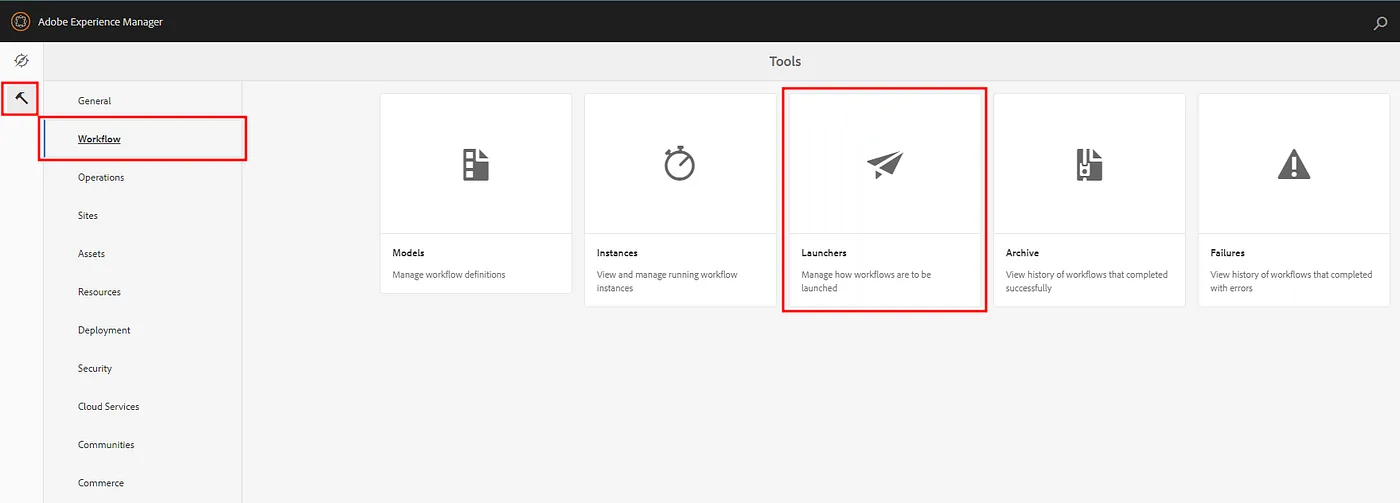
In brief, a launcher in AEM:
- Monitors events
- It watches for specified events like content creation, modification, or metadata changes.
- Triggers workflows
- When the defined event or condition takes place, the launcher automatically starts a predetermined workflow.
- Automates processes
- Launchers streamline and automate content management tasks, ensuring consistency and efficiency in content-related operations.
Overall, AEM launchers are a key feature for organizations to maintain control over their digital content and streamline content-related processes by automating them.
The launcher console
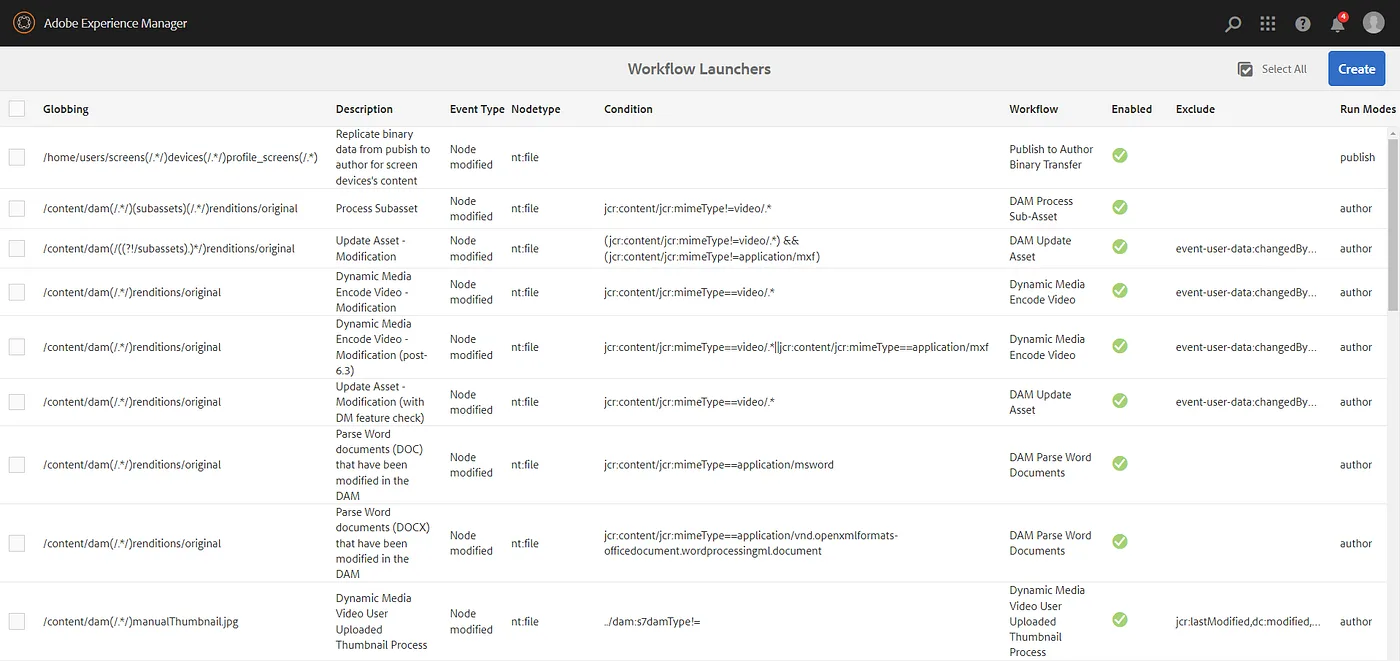
- Globbing
- A pattern-matching technique to define where the launcher should be active.
- Description
- A user-provided label or comment to describe the launcher’s purpose.
- Event Type
- Specifies the trigger event, like content creation or modification.
- Condition
- Criteria that must be met for the launcher to activate.
- Workflow
- The workflow definition to execute when the launcher is triggered.
- Enabled
- Indicates if the launcher is active or inactive.
- Run Modes
- Determines the operational modes in which the launcher should run (for example author, publish, or both).
Creating a launcher
Go to the Launchers section and click the Create button. From there, choose Add Launcher to start creating a launcher.

The launcher configuration window
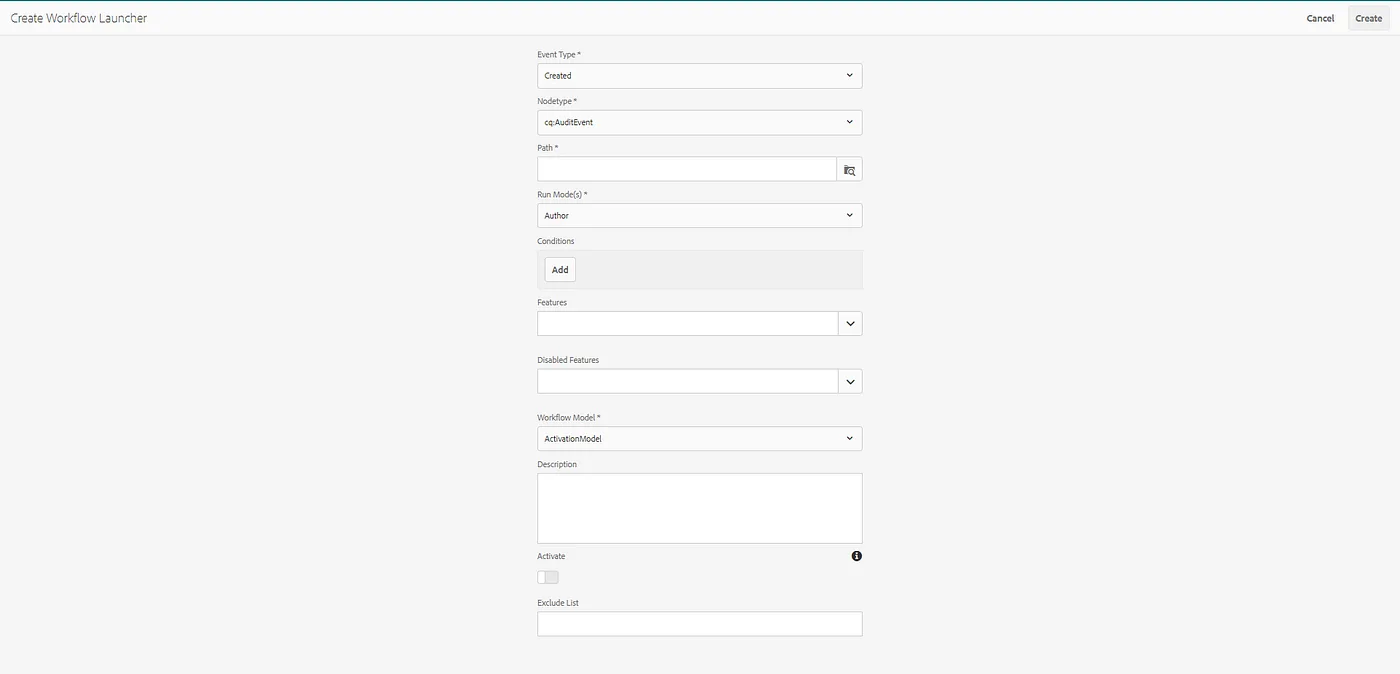
- Event Type
- The specific event that triggers the launcher (for example created, modified or removed).
- Node Type
- The type of content nodes the launcher monitors.
- Path
- The location in the content repository where the launcher operates.
- Run Mode(s)
- The operational modes in which the launcher works (for example author, publish, or both).
- Conditions
- Criteria that must be met for the launcher to trigger.
- Features
- Additional functionalities or actions the launcher can perform.
- Disabled Features
- Features that can be turned off.
- Workflow Model
- The workflow to execute when the launcher is triggered.
- Description
- A label describing the launcher’s purpose.
- Activate
- An option to enable or activate the launcher.
- Exclude List
- Items or nodes to exclude from the launcher’s monitoring.
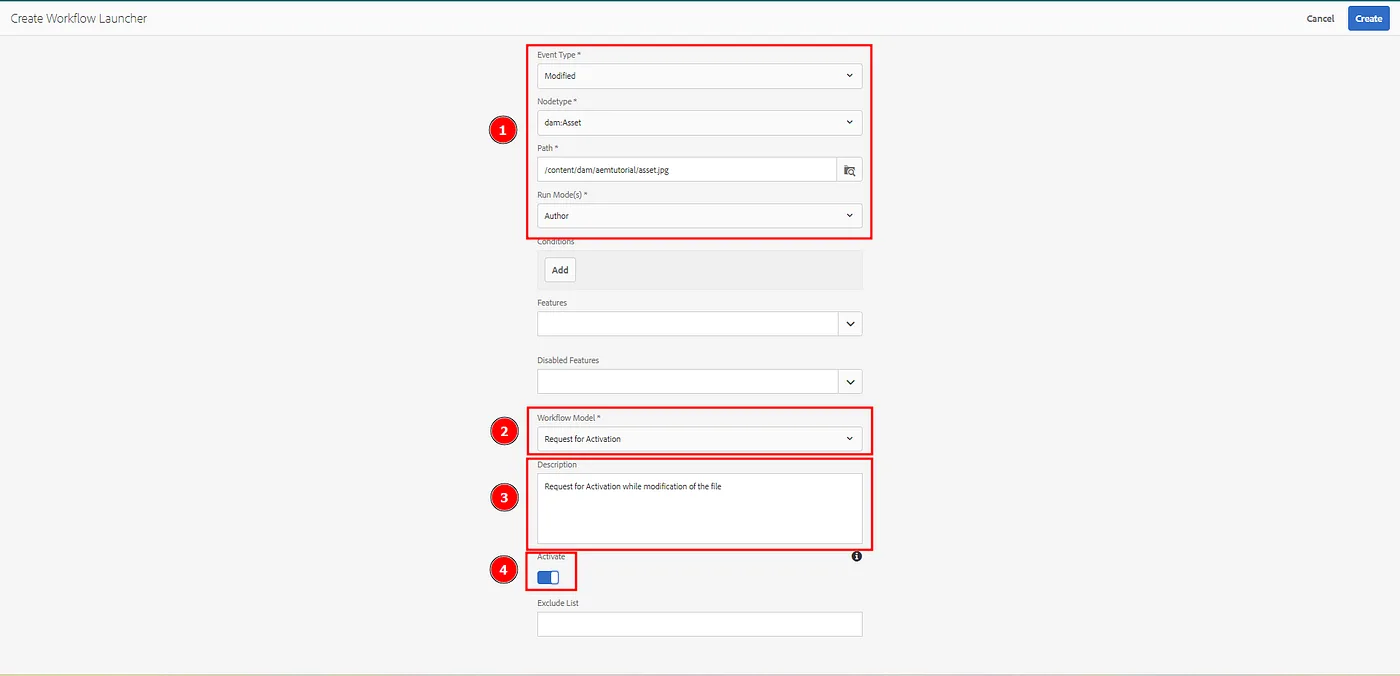
- Set these options carefully (marked 1).
- Choose the workflow model that fits the purpose (marked 2).
- Optional: give a description, so the launcher’s purpose is easy to identify (marked 3).
- Remember to activate the launcher, otherwise it will remain inactive (marked 4).
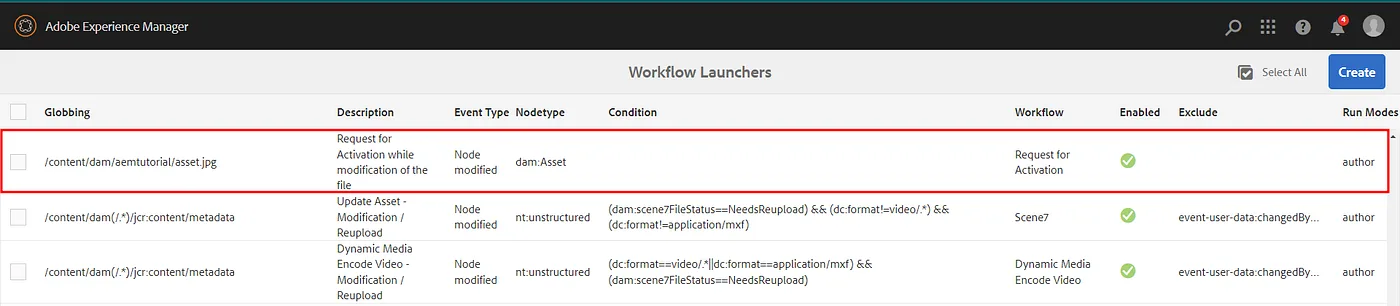
The created launcher
A new entry appears with the details of the newly created launcher.
Where it lives in CRXDE
The new launcher is stored under /conf/global/settings/workflow/launcher/config, as shown below:
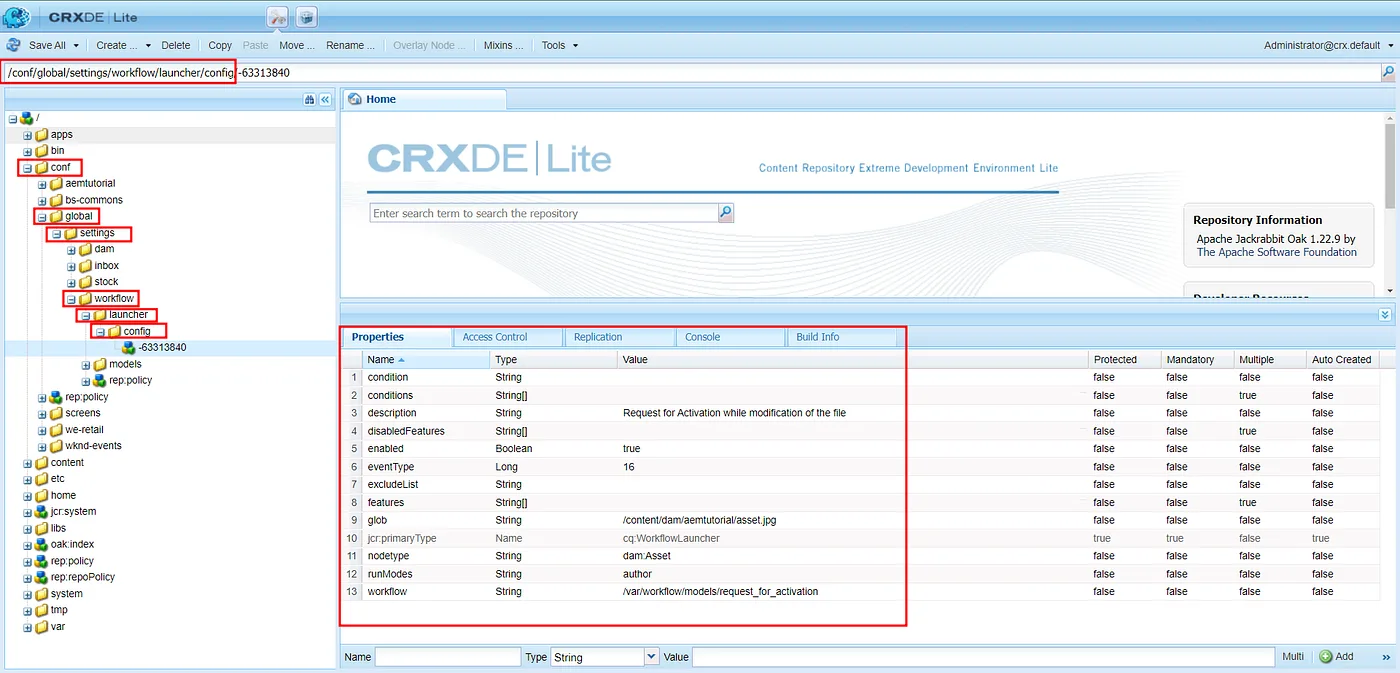
Its properties are the ones we configured when creating the launcher.
From now on, whenever the file is modified, the launcher automatically triggers the Request for Activation workflow.